Receiving files and submitting your work
Since May 2026, downloading course materials/bonuses and submitting assignments happen right on the course page. The old process using Google Drive has been discontinued.
Where to find it
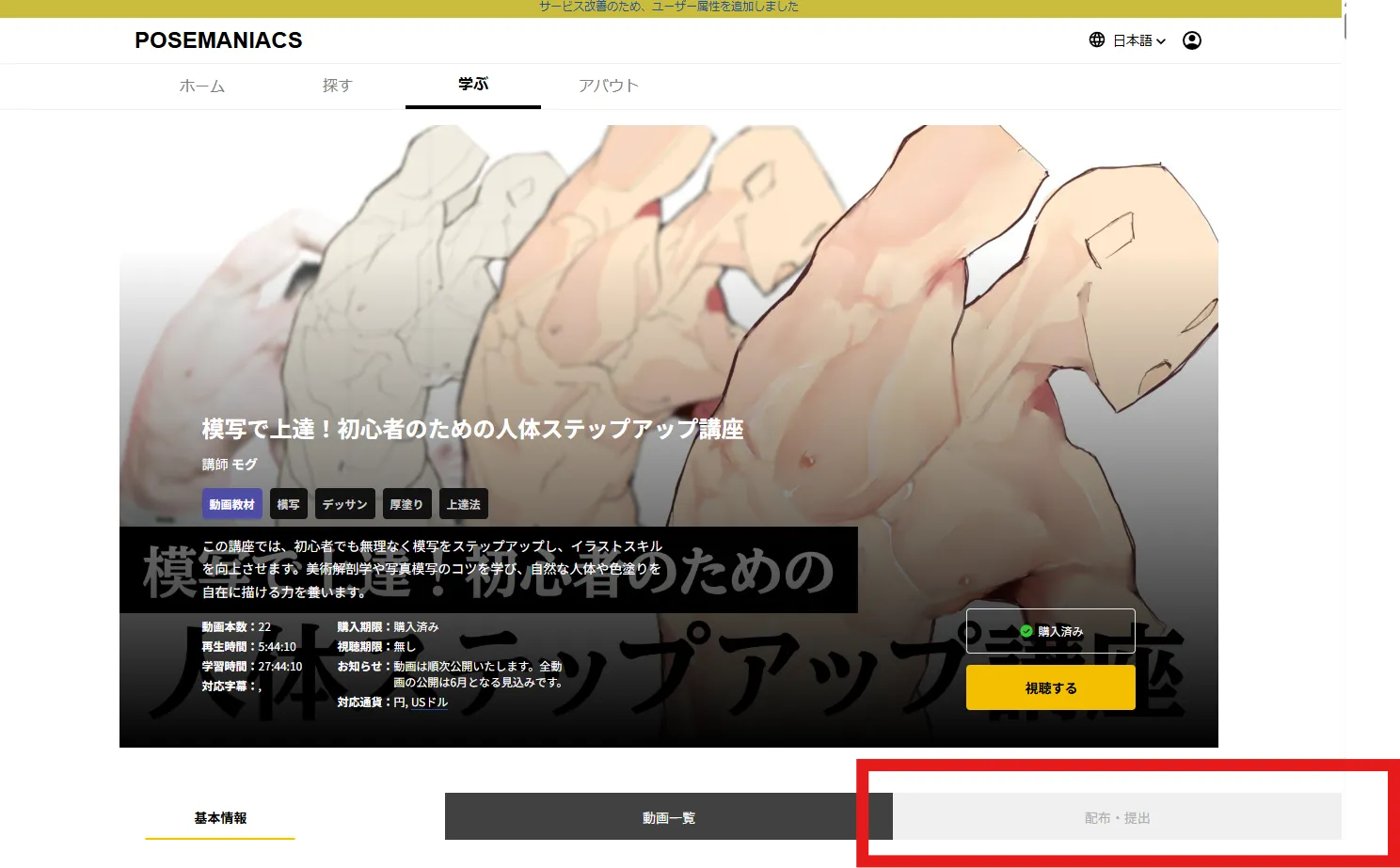
Section titled “Where to find it”Open the course page and select the tab after Information and Videos. This tab appears on any course that offers materials to download, an assignment to submit, or both. (Its English label is still being added — for now it shows its Japanese name, 配布・提出 — “distribution / submission”.)
Downloading materials
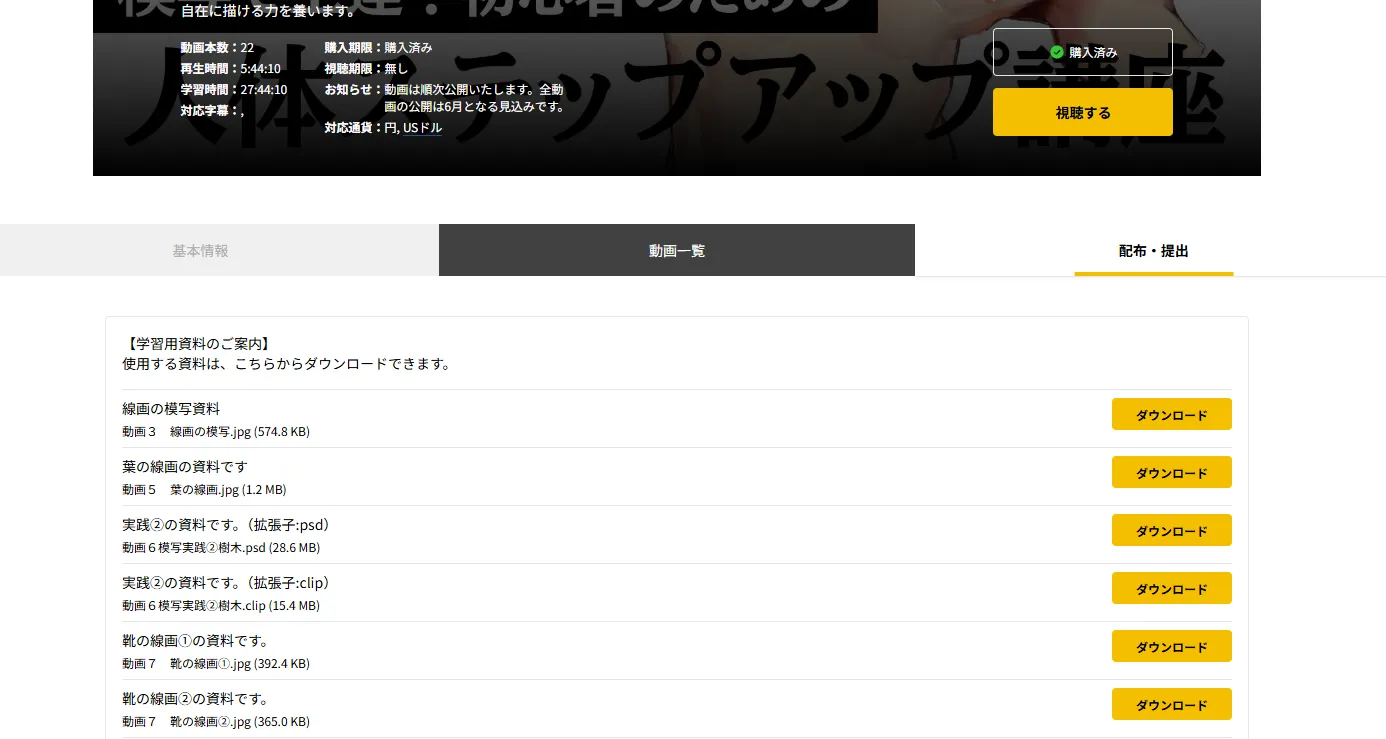
Section titled “Downloading materials”Opening the tab lists the materials available for the course. Select Download next to a file to save it.
Before you purchase the course, files are marked Available after purchase and cannot be downloaded yet.
Submitting your work
Section titled “Submitting your work”Further down the same tab is a submission area, under the heading 提出 (“Submission”). Drag a file into the dashed box, or select it to choose a file from your computer.
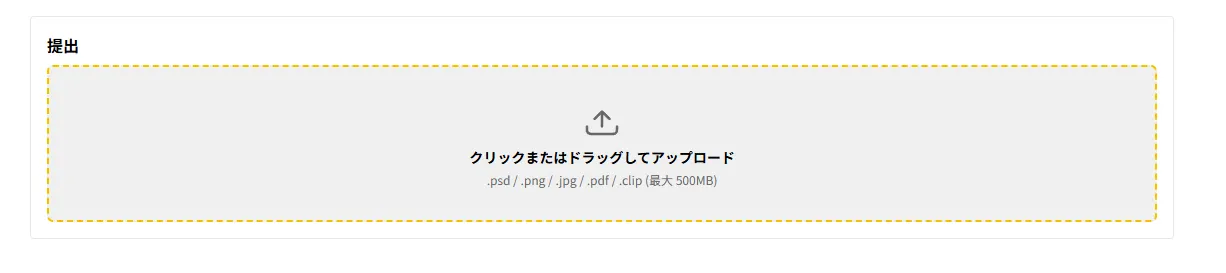
As soon as you pick a file, the upload starts automatically. There is no separate submit button. A progress percentage is shown while it uploads — keep the page open until it finishes.
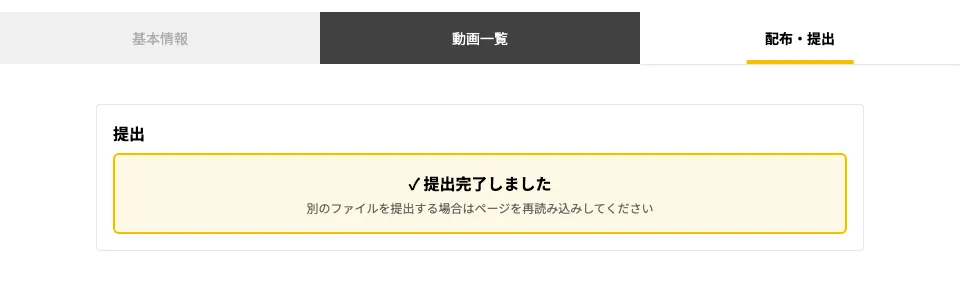
You’re done once the screen shows a confirmation.
Accepted files
Section titled “Accepted files”| Formats | .psd / .png / .jpg / .jpeg / .pdf / .clip |
| Size | Up to 500MB per file |
| Count | One file at a time |
To submit several files, upload them one at a time.
Submitting again
Section titled “Submitting again”You can submit as many times as you like. However, once the confirmation message appears, the upload area disappears from the screen, so reload the page before choosing your next file.
Earlier submissions are not deleted — every file you submit reaches the instructor, in order. If you want a particular one to stand out, name the file accordingly or send the instructor a quick note.
Withdrawing a submission
Section titled “Withdrawing a submission”There’s no way to withdraw a submission from your own screen. Please contact us instead.
Courses with a deadline
Section titled “Courses with a deadline”For courses with a submission deadline, the date and time are shown next to the submission area. Once the deadline passes, submitting is no longer possible.
After you submit
Section titled “After you submit”- You will not get a confirmation email. The on-screen confirmation message is your receipt
- Submitted files go to the instructor and our staff
- How feedback is given varies by course — check the course page for details
- There is currently no screen where you can review everything you’ve submitted
Troubleshooting
Section titled “Troubleshooting”A few of the messages below still show in Japanese, with an English translation in parentheses — an English version is on the way.
| What you see | What it means |
|---|---|
| Available after purchase | Purchase the course to download its materials |
| 購入後に提出できます (“you can submit after purchasing”) | Purchase the course to unlock the submission area |
| ログインが必要です (“sign-in required”) | Sign in, then try submitting again |
| 対応していないファイル形式です (“unsupported file format”) | Convert the file to one of the formats listed above, then try again |
| ファイルサイズが 500MB を超えています (“file size exceeds 500MB”) | Split the file, or re-export it at a smaller size |
| 締切を過ぎたため提出できません (“the deadline has passed; submission is no longer possible”) | Contact the instructor or our staff if you still need to submit |
| not purchased | You need to purchase the course before downloading or submitting |
| submission is not accepted | This course isn’t currently accepting submissions |
| submission deadline passed | The submission deadline has passed — contact the instructor or our staff |
Contact us
Section titled “Contact us”If you run into trouble downloading materials or submitting your work, please get in touch via our contact form.